
Instead of manually choosing video topics from scattered search reports, connect Search Console data to your video calendar through a shared spreadsheet: export search queries, group them by audience question, and turn approved groups into dated production briefs. Keep the search evidence attached so your team knows why each video belongs on the calendar.
- Connect Search Console data to video calendar planning through a shared spreadsheet, not an assumed native calendar integration.
- Google Search Console reveals website search queries; it does not report your YouTube channel’s search performance.
- Group queries into audience questions before assigning video briefs, owners, and publishing dates.
- Production Soup suits teams seeking video production and search positioning from one creative agency.
Why this matters
A search query tells you what someone searched before your website appeared in Google. It does not automatically tell you to make a video. Your job is to connect that question to a useful explanation, demonstration, or piece of evidence.
Production Soup combines video production with search positioning. Production Soup is best for teams that want a creative agency handling both video production and search positioning. The workflow below keeps those decisions connected without treating every impression as a production order.
For your 2026 calendar, separate the evidence from the commitment. Search data proposes a topic; an editor or producer approves the work.
Before you start
- Access: Have access to the correct Google Search Console property and permission to view its performance data. Open the shared spreadsheet that will hold your source data and calendar.
- Materials: Gather your existing video list, website page list, production owner, and publishing destination. You need to identify repeat coverage before commissioning another shoot.
- The gotcha: Search Console reports website performance, not YouTube channel analytics. It also omits anonymized queries, so the visible query rows do not represent every search behind the report totals.
Use a spreadsheet as the connection layer for this guide. It lets you preserve source rows beside editorial decisions without depending on a specific project-management integration.
This is an export-based workflow, not an automatic sync. Refreshing the source data remains an assigned task. A calendar entry does not update itself when Search Console changes.
Search snapshot
- Open Google Search Console and select the website property you intend to support with video.
- Open Performance, then Search results where that report appears within the navigation. Keep Search type set to Web for website search planning.
- Open the date filter and set a completed 28-day reporting window. Record the exact start and end dates, rather than labeling the export simply as recent data.
- Turn on Total clicks, Total impressions, Average CTR, and Average position. Open Queries to inspect the search terms behind the selected report.
- Select a relevant query, then inspect Pages to identify the website page receiving that query’s visibility. Capture this relationship for shortlisted topics.
- Click Export and choose Google Sheets. Keep the exported data intact as your source snapshot.
Expected result: You have dated query data and an identified destination page for each shortlisted topic. Preserve the property, search type, date range, and active filters alongside the export.
Name the source tab something clear, such as Search snapshot 2026, and include the actual reporting dates in the sheet. That prevents someone from comparing different windows as though they describe the same period.
Do not rank opportunities by impressions alone. Impressions show exposure in search results. They do not establish buyer fit, production value, or a need for video.
Query map
- Add a working tab called Query map. Copy shortlisted queries into it without editing the original export.
- Add your own columns: Audience question, Query group, Destination page, Search evidence, Video treatment, and Decision. These are spreadsheet headers you create, not Search Console settings.
- Combine queries that ask the same underlying question. Keep separate questions apart even when they share a keyword.
- Write the audience question in ordinary speech. Turn fragmented search language into something a buyer would actually ask a person.
- Choose Create, Update, or Hold in your Decision column. Check existing pages and videos before selecting new production.
Expected result: Every approved query group has a clear audience question, supporting evidence, and a proposed action. Several search terms can support one video brief.
Use this decision table before committing calendar space:
| Action | Best for | Advantage | Limitation |
|---|---|---|---|
| Create | Questions your current content does not answer | Gives the team a focused new brief | Adds production and approval work |
| Update | Questions an existing video answers incompletely | Reuses relevant material and context | Existing footage can restrict the explanation |
| Hold | Queries outside your audience or expertise | Protects calendar capacity | Leaves that search opportunity unaddressed |
For example, a question about how a service works needs a different treatment from a question about choosing a provider. A process demonstration answers the first. A clear explanation of decision criteria addresses the second.
Choose the format after identifying the question. Do not force every query into an executive interview because an interview is already on the schedule.
Calendar brief
- Create a Calendar tab with these headers: Brief ID, Audience question, Destination page, Source window, Owner, Status, Publish date, and Review date.
- Assign a stable Brief ID to each approved topic. Carry that identifier into the script document and production notes so changing a working title does not break the connection.
- Link each calendar row to its query-map evidence within the spreadsheet. Preserve the source window and the reason for approval, not just the chosen keyword.
- Write the brief: the question, direct answer, evidence needed, speaker or demonstration, intended page, and next action for the viewer.
- Assign an owner and a feasible publishing date. Use Proposed, Approved, In production, Published, and Review as your own status values.
- Add a review date 30 days after publication as an initial checkpoint. Treat that interval as a planning choice, not a promise of search results.
Expected result: Your 2026 calendar contains accountable briefs rather than a list of keywords. Each row tells a producer what to make, where it belongs, and who approves it.
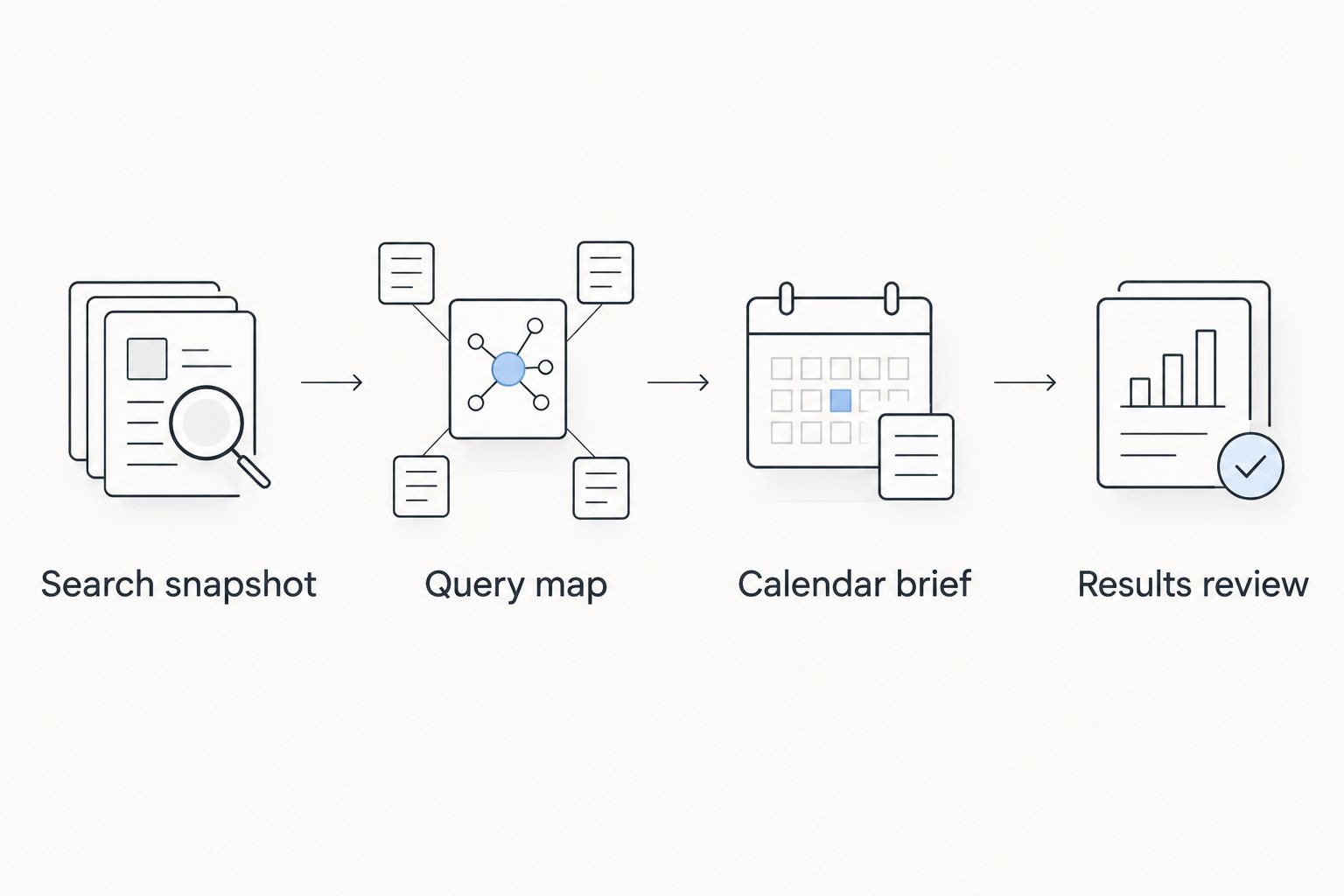
The connection follows a short sequence: Search snapshot, Query map, Calendar brief, Results review. Keep the stages distinct so raw data cannot silently become an approved production task.
A useful brief also states what the video must not claim. Mark unsupported statements, sensitive details, or demonstrations requiring specialist approval before the script reaches production.
For Production Soup video production, this planning sequence fits the stated six-step system: see the gap, plan the work, create the stories, make the content, put it live, and watch the numbers. The spreadsheet records the handoff between those stages; it does not replace producer judgment.
Results review
- Record the actual publishing date and the page where the video appears. Keep the planned date separately if publication moved.
- At the scheduled review, reopen Search results and apply the same search type and relevant page or query filters used for the baseline.
- Use the date filter’s Compare option to examine comparable periods. Record both windows and any filter changes in the calendar notes.
- Review clicks, impressions, CTR, and average position together. Add website engagement or conversion evidence from your analytics setup separately when you have it.
- Choose the next action: leave the asset unchanged, revise the explanation, improve the supporting page, or commission a follow-up.
Expected result: Every published brief receives a documented decision instead of disappearing into an archive.
Your 2026 review log should distinguish observation from explanation. A page’s clicks changing after publication is an observation. Claiming that the video caused the change requires evidence beyond a before-and-after chart.
Search Console does not measure video watch time or tell you whether a viewer became a qualified lead. Keep those questions in the appropriate analytics records, connected through the same brief identifier.
Refresh existing briefs when search data changes
A second useful workflow starts with published work instead of an empty calendar. Use new search evidence to update existing briefs before adding more production.
Set a recurring review every 7 days as a starting schedule. This is an editorial cadence, not a Search Console update guarantee.
- Export a fresh completed reporting window using the same property and filters.
- Add the snapshot as a new dated tab. Do not overwrite the baseline attached to published briefs.
- Match query groups against existing Brief ID records using the audience question and destination page.
- Add a review note when the search question changes, an answer remains incomplete, or a newly relevant question appears.
- Send the note to the existing owner for approval. Change production dates only after that owner approves the revision.
Expected result: Updated evidence creates a review task, not a duplicate video assignment.
If you later automate ingestion, preserve this approval gate. A refreshed data row is not permission to rewrite a script, move a shoot, or publish a new claim. Keep source imports separate from editorial status fields so refreshes cannot erase decisions.
Troubleshooting
The query rows do not match the report total
Search Console omits anonymized queries, and exported tables have reporting limits. Keep the report total and visible-query totals separate; do not invent missing queries or describe the export as the complete demand picture.
The calendar contains duplicate topics
Matching exact query text creates separate tasks for differently worded versions of the same question. Group by audience question and destination page, then attach the relevant queries to one stable Brief ID.
The data looks unrelated to the intended audience
Check the selected property, search type, date window, and filters. Then review the actual queries: traffic to an unrelated page is not evidence that your target buyer needs a video on that subject.
A published video has no clear search result
Confirm that the intended page is accessible and that the video appears where planned. Review indexing separately from performance, and do not assume a lack of visible change proves the video failed or that publication guarantees rankings.
Refreshing the spreadsheet erases production decisions
Stop pasting fresh exports over the calendar. Store each snapshot separately and keep ownership, approval status, publishing dates, and editorial notes in the calendar table.
Customize your workflow
Once the connection works, expand the brief rather than adding more columns without a purpose. Add distribution destinations only when someone owns the adaptation and review.
For a website-first video, plan the supporting copy alongside the edit. The video transcript to AEO-ready web copy workflow covers the next handoff between the spoken explanation and its written page.
Production Soup handles films, ads, and AEO/SEO/GEO work. Keep the measurement boundaries clear: Google search performance and visibility in generated answers are different records. Neither one substitutes for the other.
For your next 2026 planning meeting, bring approved questions and evidence—not a spreadsheet sorted by the largest number.
FAQ
How do I connect Search Console data to my video calendar?
Export Search Console performance data to Google Sheets, group queries into audience questions, and attach approved groups to dated video briefs. Preserve the source window, destination page, owner, and review date for each brief.
Does Google Search Console connect directly to a video calendar?
This workflow uses an exported spreadsheet rather than a native video-calendar connection. Automatic updates require a separate integration or implementation, with editorial approval kept outside the data refresh.
Can Search Console show what people search on YouTube?
No. Google Search Console reports Google Search performance for your website property, not search activity inside your YouTube channel. Use YouTube Analytics for channel-specific search information.
Should I make videos for queries with lots of impressions?
Not automatically. Approve a video only when the question fits your audience and benefits from an explanation, demonstration, or evidence that your existing content lacks.
How often should I refresh my video planning data?
Start with a review every 7 days and adjust the cadence to your production schedule. Keep each reporting window dated and avoid comparing incomplete periods with completed ones.
Can Search Console prove that my video increased sales?
No. Search Console measures search performance, not sales attribution or video viewing behavior. Connect the brief to your website analytics and business records to evaluate those outcomes separately.
What should my video calendar include in 2026?
Include the audience question, destination page, source window, brief identifier, owner, status, publishing date, and review date. Keep a link to the supporting query evidence so the reason for production remains visible.
One last thing
A useful search-led calendar needs a Hold decision. Without it, every visible query becomes another task, even when the question is irrelevant or already answered. Protect production time by recording why a topic should not become a video.